Schedule and Host Zoom Meetings

Schedule a Meeting
Log into the VCU Zoom portal and go to "Meeting > Schedule A Meeting" to create your meeting, or use the "Schedule" button on the desktop app.
Zoom will prompt you for a meeting title, date and start time. Additional options let you decide who can be seen and heard, whether you want the meeting to be automatically recorded, and more. You can also create a "recurring" meeting that repeats as often as you wish. Use the "Save" button to add the meeting to your list of upcoming events. Zoom will provide you with a link to send to guests.
This video will walk you through the process:
Clicking on the Schedule A Meeting button will create an event page where you can customize your meeting settings as desired.
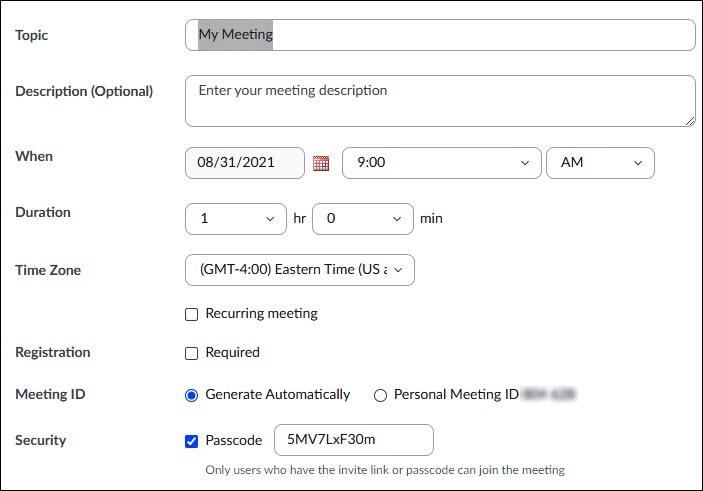
First, you'll want to give your meeting a name to make it easier to keep manage. It could be a course title like PSYCH 101, or something descriptive like "Interview with John Smith." If you're in a hurry, the default title "My Meeting" will do, but if you have a schedule full of meetings with that same name, things could soon become confusing.
Next, enter the date and time for your event. Note that by default, the meeting duration is set to 1 hour, but this does NOT mean your meeting will be cut off after an hour. It's just a default "estimate" to be used in the invitations you send to your guests. You can modify it as needed.
The "recurring meeting" option is useful for assigning a single Meeting ID to a series of events, like a semester-long class. You have multiple options:
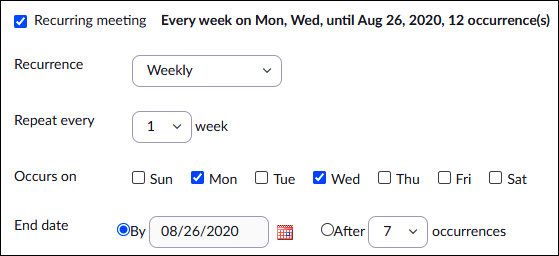
Set the meeting to recur on a daily, weekly or monthly basis on as many days of the week as you need. For the end date, either plug in the last date you intend to meet or specify the number of times you want the event to repeat. (If you want the event to persist indefinitely, then instead of "Daily," "Weekly" or "Monthly," choose "No Fixed Time.") You'll end up with a single link that applies to all meetings, so you and your guests have only one link to keep track of, instead of lots of them. On your "Meetings" tab, you'll see a listing for each meeting occurrence, but all of them will have the same Meeting ID number and "Join" link.
It's always good practice to apply a passcode and/or Waiting Room to keep your meetings secure. See "Privacy and Security" for more information about Zoom's many security features.
Other scheduling features you may find helpful:
- Assign an Alternative Host to host a meeting you can't attend
- Authorize a colleague to schedule your meetings for you
- Link your Zoom account to your Google or Outlook calendar
- Link your meetings to your Canvas course page
Zoom meeting controls can be found in the bottom toolbar of the application window with a meeting in progress. Note that due to space limitations, some functions may be grouped under the "More" heading to keep things tidy. You can customize your toolbar by moving the shortcut icons into or out of the "More" folder depending on which ones you tend to use the most.
Zoom offers a tutorial video explaining how to navigate the user interface:
Once you've launched your meeting, you'll see a number of options on the bottom toolbar:

 "Join Audio"lets you connect via your PC or telephone. Use the caret to the right of the audio icon to select your microphone and speaker, if you have more than one of either. Once you've joined, the "headphones" icon will change to a "microphone" icon and you'll be able to mute and unmute yourself as desired.
 "Start (and Stop) Video"controls the image you're sending to the meeting. Use the caret next to the camera icon to select your desired camera, if you have more than one.These settings are also where you can select and apply virtual backgrounds and filters.
 "Host Tools" provides quick links to all your security settings, including but not limited to removing participants, muting participants, locking the meeting, creating a new waiting room and granting or removing your guests' ability to unmute themselves, share content, make recordings, etc.
 "Participants" opens a window to show you a complete list of who's currently in your meeting. An "invite" button at the bottom of this window lets you invite additional guests via email or your Zoom Contacts list. You can also select individual participants to promote them to host, mute their audio, move them to the waiting room, etc.
 "Chat" opens a window to show the full chat history of your meeting as it unfolds. With this window closed, you will see new chat messages as "word balloons" that pop up at the bottom of the screen. In the Chat window, you can click on the "..." button for the option to save your chat as a text file.
 "Share Screen" connects you with all your sharing options, including but not limited to: your full desktop or portions thereof, individual applications, video from a second camera, computer audio or playback of a recorded video clip.
 Use "Record" to make an MP4 recording of your meeting. You'll be given a choice between recording to your host device or to the Zoom Cloud servers. Note that the recording may take a little time to process after the end of your meeting, but when it's done Zoom will show you where on your hard drive it was saved. Cloud recordings can be found on your account page under the "Recordings" tab.
 "Polls/Quizzes" provides access to pre-made polls you've attached to your meeting, or lets you create new polls with the meeting in progress, launch them, collect results and share those results with your participants. Various questions types are covered, including multiple choice, matching, rankings and short and long answers.
 "Show captions" displays closed captions in real time to comply with ADA standards. Captions are displayed at the bottom of your video image, and/or you can opt to have the entire transcript displayed in a side window. Each participant can customize the display to show captions in the size and color that works best for them.
 "Breakout Rooms" lets you organize your participants into sub-groups and "send them off" for side discussions. As host, you can enter and leave any breakout room to see how things are going. You can also type in messages to send to all the rooms.
 "Whiteboards" lets you start and share a new whiteboard or access an existing whiteboard from your library. Multiple templates are provided including org charts, Venn diagrams, maps and more. Depending on your settings, participants can annotate on the boards in real time and save them.
 "Reactions" provides participants with a way to provide non-verbal feedback in picture form to "applaud," give a thumbs-up, smile, ask a presenter to speed up or slow down, etc. This is where guests can find the "Raise Hand" option so you know to unmute them to take their questions.
 "Notes" is similar to "Whiteboards" in that it lets you create a page of notes or retrieve premade notes where you and your participants can collaborate to organize your thoughts and ideas. Multiple font styles, sizes, weights and colors are supported.
 "Apps" gives you access to any apps you've added to your account. Apps created and offered by Zoom will be found here, but many other 3rd-party apps will not be offered if they may violate VCU's security policies or require protected user information to function.
 "More" is a catch-all for all the features that can't fit in your toolbar. You can drag and drop your most-used icons from here onto the toolbar and file less-used features under "More. This is also where you'll find the controls to start a live stream or start "Focus Mode."
Meeting hosts and participants see and hear you through your computer's installed or USB-attached webcam and microphone. Controls in the Zoom Workplace app let you choose and customize your video and audio resources.
Click on the camera-shaped "Video" icon to start or stop your camera signal. Use the "up" caret next to the video icon to access the settings you need to replace yourself with an animated avatar, apply a virtual background or filter, adjust for low lighting, and more.
Click on the microphone-shaped "Audio" icon to mute or unmute your audio. If unmuted, you should see a green level indicator moving up and down as you speak. Click on the "up" caret next to the icon to troubleshoot audio issues, perform a quick test of your levels or choose a different microphone.
This video gives an overview of Zoom video and audio settings and operations:
Use the "Share" icon in the meeting toolbar to share content from your computer (slideshows, images, videos, documents, web pages, etc). You can share your entire desktop or select a specific open application. You may also choose to share an interactive Whiteboard.
Be sure to look for the checkbox that allows you to include audio in your shares, if applicable. By default, Zoom will avoid sharing audio to eliminate system sounds, notification chimes and other unwanted audio from your computer, but when sharing videos, sound clips, etc you'll want the audio to come through. Also note that under the "Advanced" tab is a choice for "Video," allowing you to use Zoom's native video player instead of a third-party app like VLC player, Windows Media Player, Quicktime Player, etc. When using Zoom's player, audio will be included by default.
This video provides more details on the "Share" feature:
Captions and Live Transcription in Zoom
Closed captions can be generated in real-time for any VCU-hosted Zoom Meeting. Users are encouraged to make use of this feature to create a more inclusive and accessible experience for participants.
By default, all VCU Zoom users have the closed captioning feature enabled, but here's how to verify it's enabled for your account:
- Sign in to the VCU Zoom web portal (vcu.zoom.us).
- In the navigation menu, choose "Settings > Meeting > In Meeting (Advanced)."
- Verify that both "Manual captions" (including both boxes under it) and "Automated captions" are enabled.
- Go to "Settings > Recording > Local Recording" and check the box for "save closed caption as a VTT file" to have the file saved to your computer
- Under "Settings > Recording > Cloud Recording", check the box for "save closed caption as a VTT file" to have your transcripts saved to the Cloud.
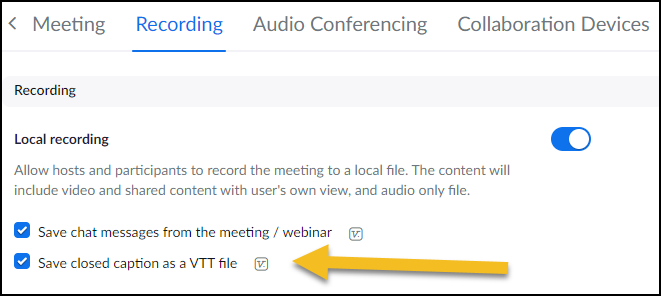
The above settings will create your captions and transcripts on cue, but as the meeting host, you still need to trigger their creation during the meeting. Just choose "Show Captions" from the Zoom toolbar and indicate the language that will be spoken in the meeting.
If your participants can't see the captions, ask them to click on "More" and choose "Display Subtitles".
If you want to change the size or color of the captions, you can do so by using the caret next to the "Show Captions" button to access "Caption Settings".
Use the slider control to see a preview of the font size and choose what works best for you.
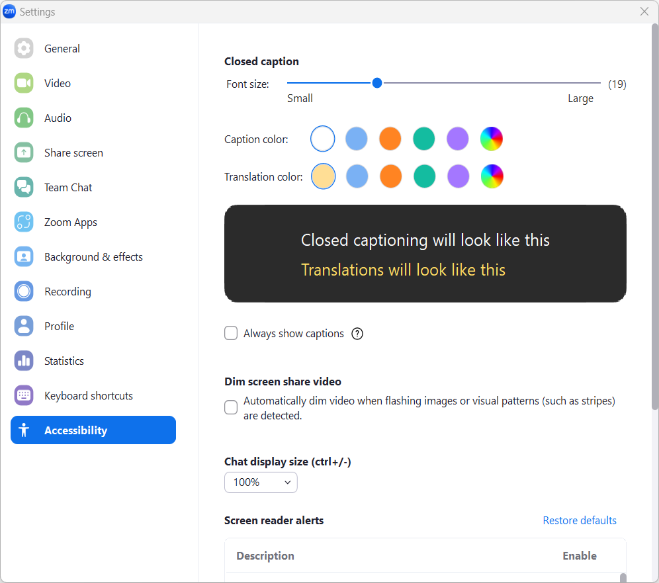
Note that each user's controls are unique, so changes you make here will not affect how others see the captions.
You and your participants can also use the "View full transcript" option to launch a window that displays the full transcript in a scrolling side panel (similar to "Chat") instead of, or in addition to, the captions scrolling across the bottom of the video window.
A Note About Streaming
Remember that when streaming your Zoom Meeting or Webinar via Facebook, YouTube, Twitch or a custom streaming service, you could be reaching a much larger audience, which increases the likely need for captions.
Whenever you launch captions in a Zoom meeting, they will be included in the live stream you send to these platforms, for the benefit of all viewers.